Showing posts with label Technology Tips. Show all posts

Monday, 11 April 2011

Tracing a website using command prompt – hacking tip


Tracing or Routing a website using command prompt. This tip is only meant for educational purpose. I mainly use this trick to find out the hosting provider where a particular domain is hosted.
Follow the below steps:
1.   Start->Run->CMD  ie; open Command prompt
2.  Type the following command and press enter.
tracert www.websitename.com
in the above command, enter the desired website name.
Once you press enter, it tell you where a particular domain is hosted, Location, Country and some details of that domain.
Disclaimer: I am not responsible for this trick if this is used in a wrong way. I didn’t invent this method rather I myself found it somewhere else. Do not use this for Hacking purpose.

By Tricks101.blogspot.com with 5 comments Read More...

Sunday, 10 April 2011

Handy and best computer tip to join Video Files using Command Prompt – Hack


Join videos using just windows command prompt
Yes, that’s right. In this post I am going to show you a simple tip to join video of various formats like Mpeg, dat, mpg.. If you have questions like
1. How to join various video files into one?
2. Join two video files?
3. How to Join videos taken from mobile phone?
Then, the best method to follow is shown below. You can join your video files using just the windows Command Prompt. No need of any video joining software’s.

Step 1: For example if you have 3 videos in your hardrive root drive: video1.mpg, video2.mpg and video3.mpg just rename them to a, b, and c (just the letter withoug the file extension).
Example:
ren video1.mpg a
ren video2.mpg b
ren video3.mpg c
Step 2: Open Command Prompt.  Start–>Run–>type “cmd”.
Step 3: Type the location of the drive like d: or C:
Step 4: Type: Copy /b a + b + c videoname.mpg
and click enter

Step 5:
 Now wait till you see: 1 files<s> copied.
Join video files using command prompt
And type exit and press enter. Thats it.You are done!
Note: If you want to join two files then those files must have the same extension.
Alternative Method to Join multiple video files using freeware software:
What is Easy Video Joiner?
Join video using freeware video joiner software
Easy Video Joiner can help you join multiple AVI, MPEG (MPG), RM (Real Media) or WMV/ASF (Window Media) files into one large movie file. You can add an unlimited number of video files as you like to the list and easily rearrange their order if needed. With just a few mouse clicks, you can enjoy your movie clips without interruption.
Key Features
1. Can join AVI files(*.avi, *.wav), MPEG-4 and DivX are supported;
2. Can join MPEG files(*.mpeg, *.mpg, *.m2p, *.m1v, *.m2v, *.mp3, *.mpga), MPEG-1 and MPEG-2 are supported;
3. Can join Real Media files(*.rm, *.ram);
4. Can join Windows Media files(*.wmv, *.asf, *.wma);
5. Not only join video files, but also join most audio files with popular format(*.mp3, *.mpga, *.rm, *.wma, *.wav);
6. Very easy to use and very fast to work.
You can even use HJSplit software to join video files or any other files like mp3 too.
Description of HJSplit
HJSplit is a popular set of freeware file-splitting programs created by Freebyte.com in collaboration with various programmers. HJSplit supports many platforms. All versions are compatible with each other and allow you to exchange files between these different platforms. E.g. a file split on the Amiga can be joined on Windows 2000 and vice versa.

By Tricks101.blogspot.com with No comments Read More...

Getting a Google Wave invitation – free ways and methods to get google wave account

    
Ways of Getting free google wave invitation
Lets begin with a small description of what actually a Google wave is.
Google Wave is an online tool for real-time communication and collaboration. A wave can be both a conversation and a document where people can discuss and work together using richly formatted text, photos, videos, maps, and more.
A wave is a conversation with multiple participants — participants are people added to a wave to discuss and collaborate on its content. Participants can reply any time and anywhere within a wave, and they can edit content and add more participants as a wave develops. It’s also possible to rewind waves with the playback functionality, to see what happened, and when.
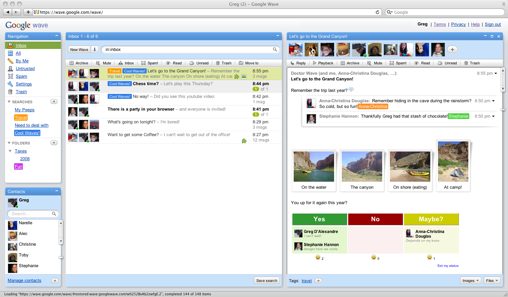
Below is the screenshot of Google wave main page after receiving an invitation and logging in.
Google wave login page after getting invitation
So, If you have a gmail account or orkut account, its not enough to get a google wave account. Since google wave is a new product of google, they offer account only to limited members. Its a bit hard to get google wave account membership though it is free. There are various ways and methods to get google wave account and i am going to highlight it here.
Method 1: Sign up for Google Wave Account by filling the request form
Directly signup at google wave by sending a request to Google Wave team to get an open invitation. You need to fill a request form. Visit request form
Method 2: Ask Google wave users to send you an invitation.
Remember when Gmail was introduced, a person need to get an invitation to open a gmail account. That’s the same case with Google Wave. You can ask any google wave user to send you a invitation. In this way you can easily join google wave.
Method 3: Getting Unlimited Google wave accounts
Source : youcanhack
Invite others after getting unlimitted google wave accounts
Yes, that’s right. Once you hold a google wave account, you can have unlimited google wave accounts and can invite others to google wave.
To apply this trick you will need at least One Google Wave Account and at least One Google Wave Invitation left to invite others.
First, create your entirely new mail account in Gmail.com. Then log in to your Google Wave account.
Click Invite Others to Google Wave and write your new Gmail address at Enter an Email Address Box.
Login to your new Gmail account that you’ve just created and accept the Invitation. You will be redirected to your New Google Wave Account from where you can send further more invitations.
Now u can see 8 Invitations left in your new Google Wave Account. You can keep inviting 7 people. When you have only one Invitations left follow the whole method again, i.e. create new Gmail account and invite it.

By Tricks101.blogspot.com with No comments Read More...

Gmail Drive guide to use Gmail space as online storage drive hack

  
Free Gmail drive help to use gmail space as external drive
Gmail is really famous among users of all the email clients available on the web and that is not because it has a cool interface rather it is famous for its reliability and huge space which includes storage space of 6000 megabytes  and increasing. Google doesn’t stop here and recently Google announced that users can now buy more online storage for Google services just by paying a little amount. So why not use this online storage space and use it externally probably as a network drive or one of your own computer hard drives.
Use Google Storage Space as Google Drive
I am going to show different methods by which your can use your Gmail account space as your external hard drive that too free. You will be able to download (or should I say copy) attachments from your Gmail account to your computer just as you would do from a drive on your computer. You can also use this space to upload content direct from your computer and save it online in your Gmail account.
1. GMAIL DRIVE
Gmail Drive Guide free
GMail Drive is a Shell Namespace Extension that creates a virtual filesystem around your Google Mail account, allowing you to use Gmail as a storage medium.
GMail Drive creates a virtual filesystem on top of your Google Gmail account and enables you to save and retrieve files stored on your Gmail account directly from inside Windows Explorer. GMail Drive literally adds a new drive to your computer under the My Computer folder, where you can create new folders, copy and drag’n'drop files to.
With GMail Drive you can easily copy files to your Google Mail Account and retrieve them again.
When you create a new file using GMail Drive, it generates an e-mail and posts it to your account. The e-mail appears in your normal Inbox folder, and the file is attached as an e-mail attachment. GMail Drive periodically checks your mail account (using the Gmail search function) to see if new files have arrived and to rebuild the directory structures. But basically GMail Drive acts as any other hard-drive installed on your computer.
You can copy files to and from the GMail Drive folder simply by using drag’n'drop like you’re used to with the normal Explorer folders.
Because the Gmail files will clutter up your Inbox folder, you may wish to create a filter in Gmail to automatically move the files (prefixed with the GMAILFS letters in the subject) to your archived mail folder.
Please note that GMail Drive is still an experimental tool. There’s still a number of limitations of the file-system (such as total filename size must be less than 65 characters). Since the tool hooks up with the free Gmail Service provided by Google, changes in the Gmail system may break the tool’s ability to function. I cannot guarantee that files stored in this manner will be accessible in the future.
2. PHP GMAIL DRIVE (PGD)
free guide for php gmail drive pgdPhp Gmail Drive is a new type of file sharing utility. Unlike typical file servers (say xDrive) it uses Gmail as backend file server. You can enjoy it simply by hosting a small PHP script in your web site without any database. Gmail file space is more than 2GB, so you can imagine you already have such a big space on internet. However, you will require a Gmail account (If you don’t have any Gmail address, go GmailSwap or ask your friends.). PGD automatically connects Gmail server and fetches list of all attached files and generate downloadable links in a tree like view. If you are looking for a file server to upload your music or notes without any hassle, PGD is ideal for you. Technically speaking PGD is wrapper of Gmailer . Thought there is  no need to know hecks of PHP or Gmailer.  Just you have to check that your PHP hosting service provider has curl extension of PHP to handle HTTP/HTTPS traffic.
Features
* Successfully connects to Gmail and only grabs list of Attachments in Gmail messages.
* List of attachments are displayed with inbuilt Javascript engine. You can customize output to any other formats.
* 100% compliant to GMAILFS. So you can upload with Windows Gmail Shell extension or Linux GmailFS utilities..
* Supports Multiple Gmail accounts in the same script .
* Supports all browsers.
* Total size is less than 100 KB.
3. GSPACE
Free Gspace Guide to use gmail as drive
Gspace is the FON friendly site that provides FREE Online Storage to access your files everywhere.
Gspace turns the 2GB of your Gmail account into free online storage. With Gspace you can manage unlimited Gmail accounts to store all type of files within its simple, user friendly interface.
Listen your favourite stored music directly from your Gspace, view your collections of pictures and manage your Gdrive files as well.
Gspace works with Windows Os, Linux, and MAS OSX
Download (I think Gspace is no longer working)

By Tricks101.blogspot.com with No comments Read More...

Free SMS Alerts:
Get daily updates of latest computer tips and tricks by SMS.
Subscribe Now